1. Product Description
The HAUI Touch Display is a sleek, purpose-built wall-mount user interface designed for Home Assistant or any similar home automation dashboards like OpenHAB, Domoticz, ioBroker, Gladys Assistant. It transforms any standard single-gang electrical box into a beautiful, always-available touchscreen control panel for your smart home. It's also applicable to a fixed display of any URL you find useful.
Running a full Home Assistant dashboard directly in your browser, HAUI provides instant access to lights, scenes, climate, security, and any other automation you have configured — all with a responsive, touch-optimized experience that feels native to your home.
Key features include:
- Flush wall-mount design with clean, minimal bezels
- Easy USB-powered installation (replaces existing switches)
- Built-in Setup Wizard for Wi-Fi, MQTT, and backlight control
- MQTT integration for dynamic brightness, timeouts, and diagnostics directly in Home Assistant
- Automatic sleep/dim functionality for energy efficiency and longevity
HAUI is the perfect modification of a full-page OS turned into a dedicated wall-mounted Home Assistant interface — simple, reliable, and always ready. Built on Raspberry Pi hardware, it supports customization for special requirements while keeping the everyday dashboard experience simple and beautiful.
2. Product Specifications
3. Mechanical Installation
Watch full video on YouTube →
Technician Steps (Electrical Wiring)
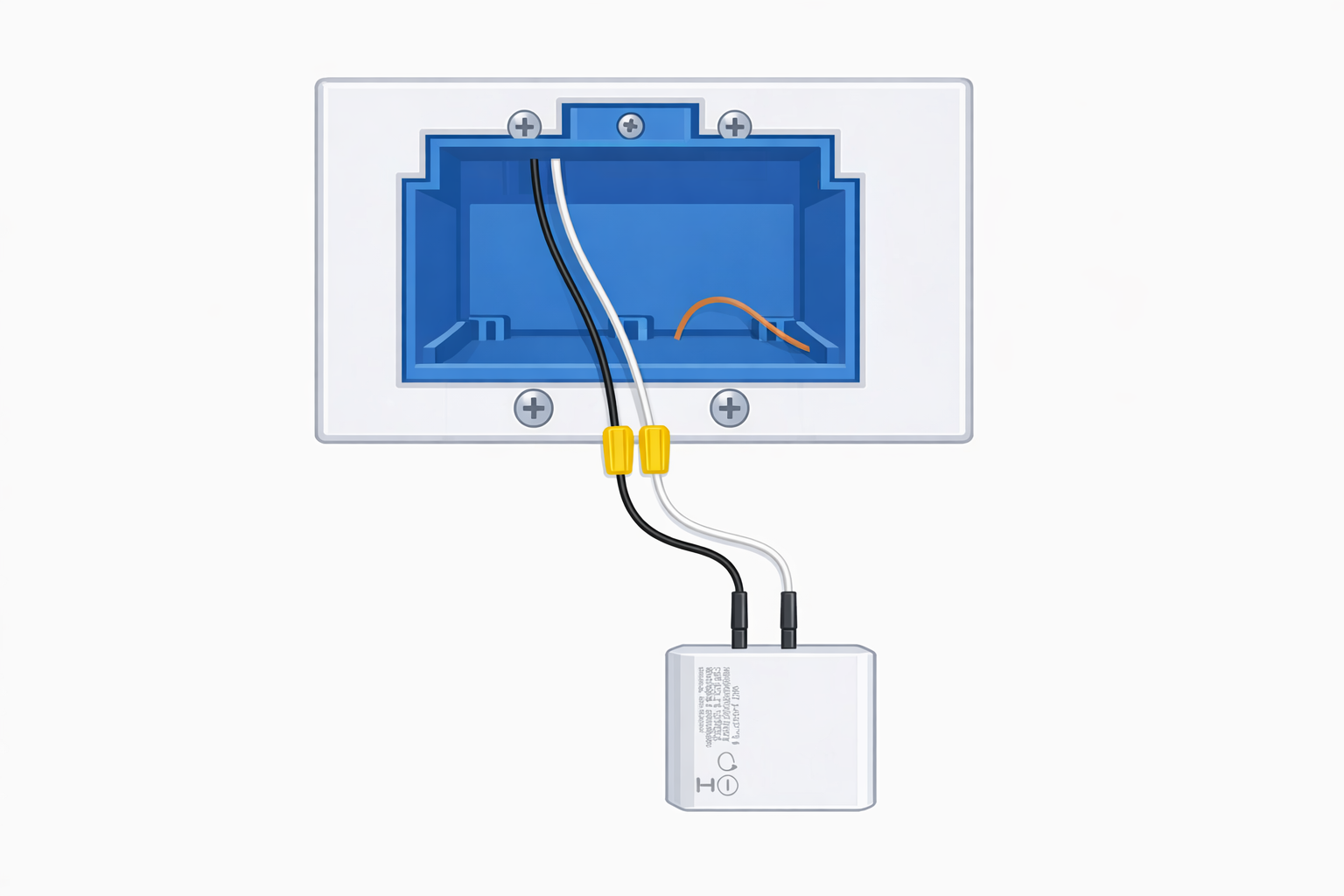
User Steps (Final Assembly)
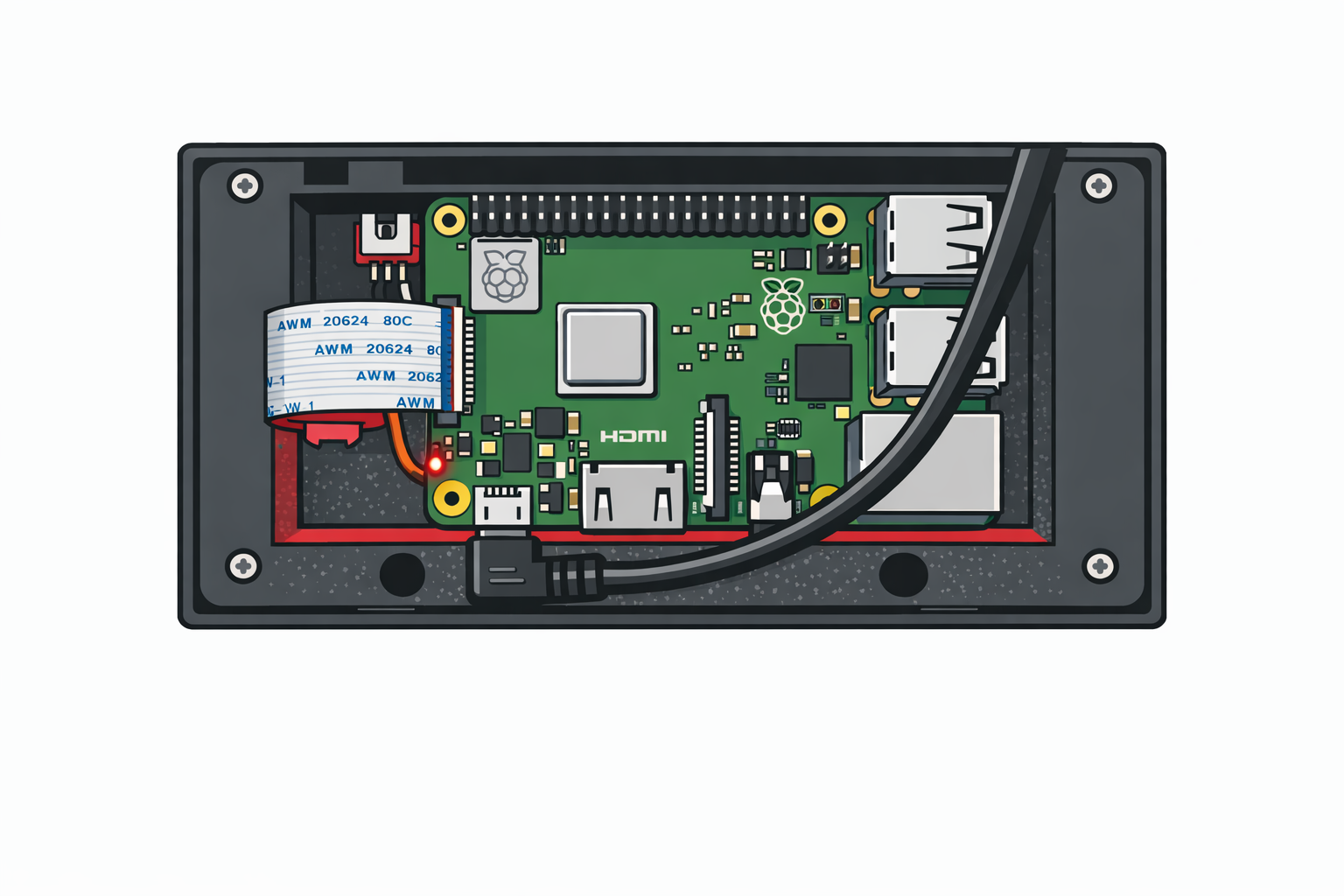
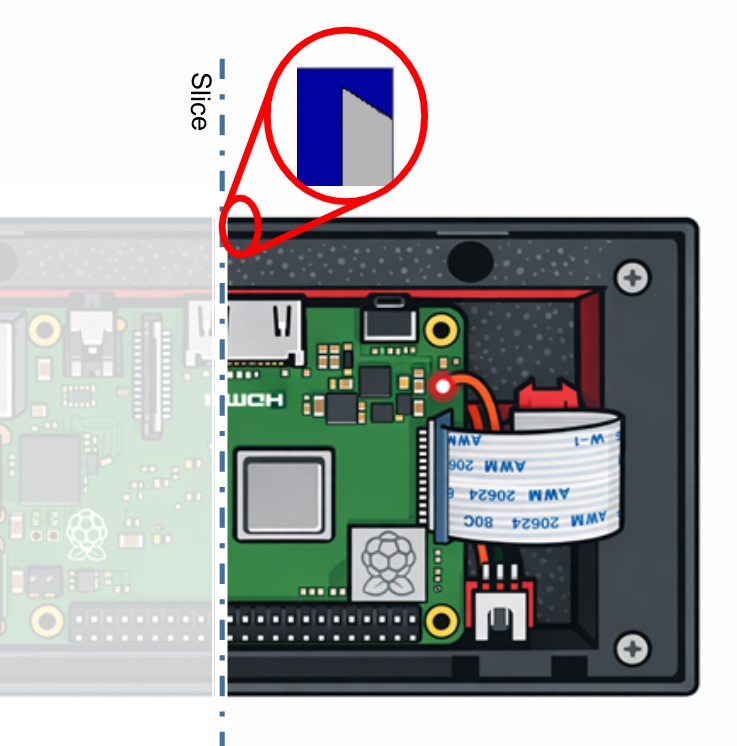
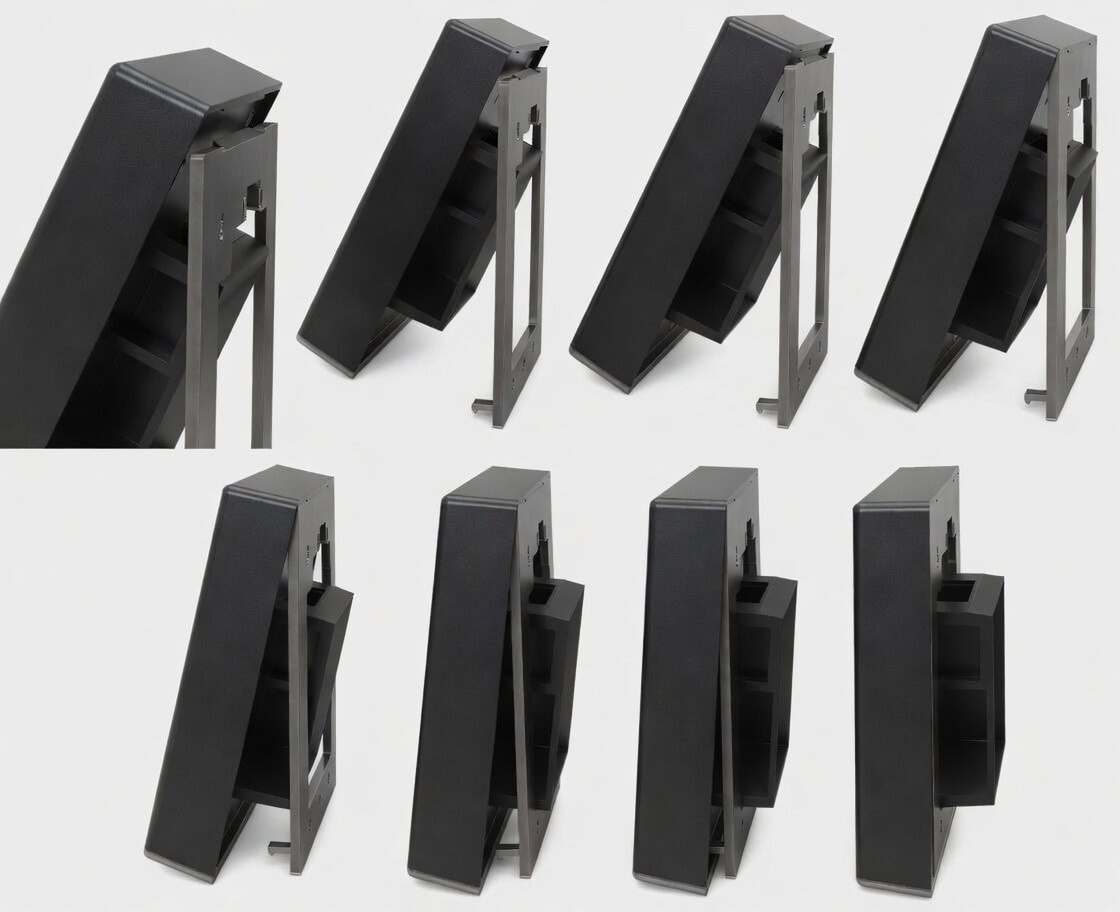
4. Powering Up & Setup Wizard
Watch full video on YouTube →
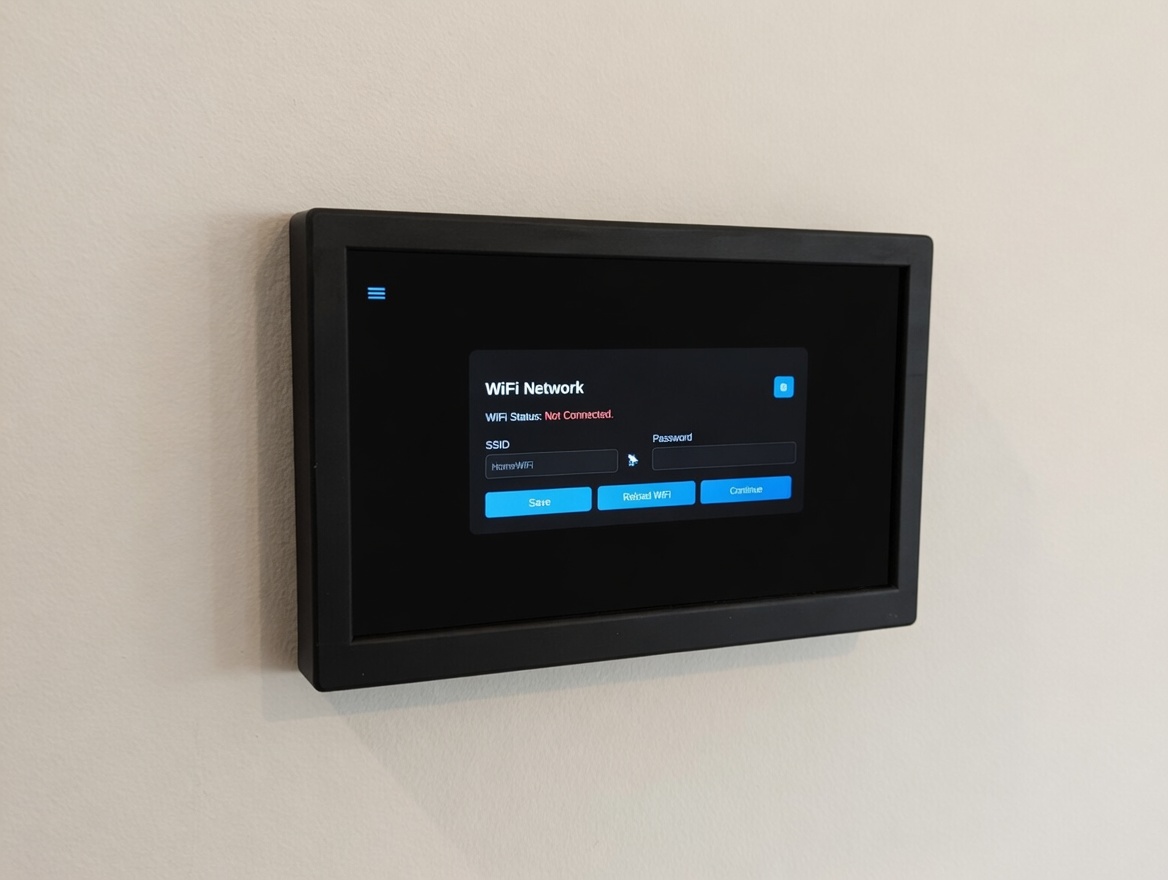
Once the USB cable is connected and power is applied, the HAUI will automatically boot and launch the Setup Wizard.
Follow the on-screen steps in sequence to configure:
- Wi-Fi connection
- Hostname
- MQTT connection (optional but recommended)
- Backlight control service
MQTT Integration: When connected, MQTT allows Home Assistant to dynamically adjust screen brightness, dim timeout, and sleep timeout. It also provides useful diagnostics (such as undervoltage events) directly in your dashboard.
If MQTT is not configured, the unit will use safe default settings for sleep and dimming behavior.
On the final wizard screen, tap Reboot. The HAUI will restart and load directly into the Home Assistant dashboard URL you entered during setup.
5. Change Settings
You can change the settings of your HAUI Touch Display at any time by accessing the MQTT device from the Home Assistant dashboard under devices MQTT.
Another option is to access the HAUI's built-in web interface by entering the URL to the HAUI control interface (replace [HAUI_IP_ADDRESS] with your device's IP address). From there, you can adjust Wi-Fi settings, MQTT configuration, and backlight control options and some other settings.
On the controls screen you find an option to clear the chromium cache. This is useful for resolving certain issues like the HAUI stuck on the logo at the boot time.
5.1 Access via ssh
For advanced users, you can access the HAUI's command-line interface via SSH.
Use the following credentials to log in:
- Username: haui
- Password: haui
Once logged in, you can run various commands to check system status, view logs, or perform maintenance tasks. For example, you can check the current Wi-Fi status with:
nmcli device wifiOr view the HAUI logs with:
journalctl -u haui -fPlease note that SSH access is intended for advanced users and should be used with caution. We don't provide support for modified systems beyond it's hardware.
In the /home/haui/scripts directory, you can find scripts to manage the interface. Example the clean_chromium_cache.sh script.
Important services to keep in mind
- backlight.service:The main service that controls the interface sleep and dimming according to your settings adjusted via MQTT on the Home Assistant dashboard. If this service is stopped or restarted, it may affect the display's behavior.
- clear-chromium-cache.service: Manages the chromium cache. Service is called at boot time and should help resolve the logo stuck issues mentioned above.
Backlight behavior
- Haui backlight timeout: The duration of inactivity (no touch input) after which the display will dim to save energy and prolong the screen's lifespan.
- Haui dimming percent: The percent of dimming once the backlight timeout is reached.
- Dim Timeout: The duration of inactivity after the dim event which the display will turn off. Setting the dim timeout to it's maximum = 600 will cause it to never turn off and stay at the dim level until a touch event occurs. This is useful if you want to keep a clock visible in your display.
In any of the conditions above, a display touch event will bring the backlight brightness to full.
Troubleshooting
Common issues and solutions
Problem #1: My HAUI keeps rebooting
Use the USB charger provided together with the interface. The Raspberry Pi needs a minimum 2A and a good quality cable to properly power. A cable or charger that does not meet the requirements will cause low voltages and, as a result, reboots.
Problem #2: My HAUI is stuck at the logo
Update your URL. Problematic URLs will cause Chromium to not start properly, leaving the device stuck at the logo screen.
5. Support & Contact Information
If you need assistance with your HAUI Touch Display, please reach out using any of the following methods:
- Email: contact@remorh.com
- X.com Chat: @RemorHomes
We are happy to help with installation questions, troubleshooting, or feature requests.
Buy now - Free shipping to USA